This is Part 1 of a 3-part series on migrating Windows file servers to Amazon FSx for Windows File Server. Part 2 covers designing your AWS DataSync tasks and rebuilding SMB shares. Part 3 walks through a real cutover night, including the four things that kept us on the phone until midnight.
TL;DR: A Windows file server migration to Amazon FSx isn’t a data copy job. It’s a platform migration that touches Active Directory, DNS, Kerberos, and a bunch of user expectations nobody’s documented. Before you move a single byte, lock in your Multi-AZ vs Single-AZ decision, your storage type, your throughput capacity, and whether your source data is deduplicated. That last one will mislead your sizing if you let it.
Table of Contents
Why these migrations are harder than they look
I get some version of “it’s just a file server” in most scoping calls. Fair enough. The data transfer really is the straightforward bit. But underneath the project plan, there’s a platform migration touching Active Directory, Kerberos, SMB share permissions, DNS, DFS Namespaces, deduplication, and a pile of implicit contracts between users and their mapped drives that nobody’s written down.
Those contracts stay invisible until something breaks. A few examples from recent engagements:
- UNC paths are everywhere, and I mean everywhere. Users know \\fileserver\Finance by heart. Applications hardcode it. Scripts reference it. Nobody maintains a list. On one migration I found a 2011 batch file in a department share that was still running nightly, pointing at a server name two renames old.
- Permissions aren’t one system, they’re two. NTFS ACLs control file access. SMB share permissions control who can even connect. Different inheritance, different tools, different failure modes.
- DFS Namespaces abstract the backend, sure. But clients cache referrals for up to 30 minutes by default. You flip a DFS target in seconds and half your users are still stuck on the old server for the next half hour. We learned to drop referral TTL to 300 seconds a week before cutover, every time.
- Kerberos depends on SPNs sitting on the right AD computer object. Miss this and NTLM fallback kicks in quietly, which works until someone’s GPO enforces Kerberos-only. Then nothing works.
- Deduplication hides the real data volume. I’ll cover this properly below because it’s burned us on sizing more than once.
Here’s what catches people: DataSync copies file data and NTFS ACLs. That’s it. It doesn’t touch SMB share definitions, share-level permissions, DNS records, SPNs, or deduplicated chunks. The tool is excellent at what it does. The problem is when a project plan quietly assumes it does things it was never designed for.
How I think about the work
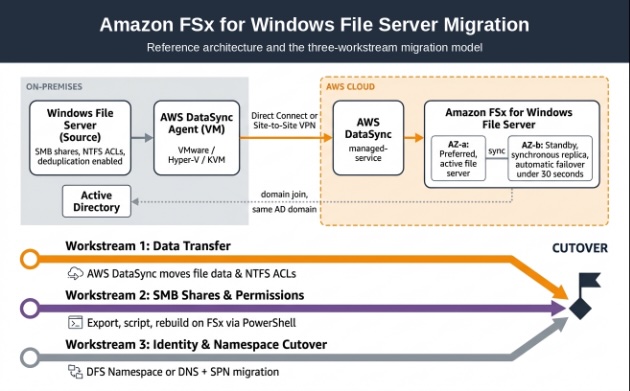
I break these migrations into three separate tracks that run in parallel and come together on cutover night. Not three sequential phases. Parallel. That distinction matters because it changes when you start the work.
The first track is data transfer. DataSync moves files and NTFS ACLs from source to FSx. It’s the visible part. People screenshot the progress bar, paste it in Slack. It’s also maybe a third of the actual work.
The second track is SMB shares and permissions. Share definitions and share-level permissions have to be exported from the source and scripted onto FSx manually. I’ve seen migrations where the data lands perfectly, NTFS ACLs are pristine, and then nobody can connect. Because the shares don’t exist on the target yet. Nobody created them. It’s a surprisingly common miss.
The third track is identity and namespace cutover. How do clients find the new file server? DFS Namespace swap? DNS alias with SPN migration? What about the scheduled job with a hardcoded server name, or the one app that connects directly instead of through the alias? These questions need answers before migration starts, not during the cutover window.
The pattern I’ve seen go wrong: teams treat these as sequential steps. They finish the data sync, then realise they haven’t scripted the share rebuild, then find out they haven’t decided on DFS vs DNS cutover. Now it’s 9pm and they’re improvising. The migrations that go smoothly are the ones where all three tracks are running from week one.
FSx for Windows or FSx ONTAP
Before you get into Multi-AZ decisions and storage types, there’s a fork in the road worth spending 10 minutes on: do you actually want FSx for Windows File Server, or is FSx for NetApp ONTAP the better fit?
For pure-Windows, SMB-only environments, FSx for Windows is the shorter path. It’s a native Windows file server under the hood, integrates directly with Active Directory, and supports Windows-specific features like DFS Namespaces, shadow copies, and data deduplication out of the box. This entire blog series assumes FSx for Windows, and that’s what I have hands-on experience with.
Where ONTAP becomes worth evaluating: if you need to serve both SMB and NFS from the same storage. A mixed Linux/Windows environment, or a team with Mac workstations alongside Windows desktops, is the typical scenario. ONTAP handles multi-protocol access natively without running two separate file systems. It also offers features like FlexClone, SnapMirror, and automatic storage tiering between SSD and capacity pool storage.
The trade-off is operational complexity. With ONTAP you’re managing volumes, SVMs (Storage Virtual Machines), and export policies on top of the usual share administration. If your workload is purely SMB and Windows, that extra layer isn’t buying you anything.
I haven’t personally run a migration to ONTAP, so I won’t pretend to have opinions on its operational quirks. But the decision point is clear enough: if NFS shows up anywhere in the requirements, evaluate ONTAP early. AWS has a good comparison page (linked in the resources below) that covers the differences in more detail than I can here.
Multi-AZ or Single-AZ
Lock this in early. Changing later means re-provisioning from scratch, not flipping a toggle.
For production workloads, Multi-AZ is the right call. It runs an active/standby Windows Server Failover Cluster across two Availability Zones with synchronous replication. Failover typically completes in under 30 seconds and the DNS name stays constant. I’ve never had a client regret choosing Multi-AZ for production shares.
Single-AZ is a different operational model. You’re looking at around 30 minutes of downtime during failure recovery and during your configured maintenance window. AWS says it’s suitable for workloads that can tolerate up to 20 minutes of lost availability. Test that tolerance against your actual RPO. I’ve seen teams pick Single-AZ to save money, then spend more on the incident response when a maintenance window hits during month-end processing.
Requirement | Recommended choice |
Business-critical shares, user profiles, application dependencies | Multi-AZ SSD |
Non-critical departmental archive, cost-sensitive cold storage | Single-AZ, with a tested recovery plan |
Latency-sensitive workloads, millions of small files | Multi-AZ SSD |
Domain joining the FSx file system
This one sounds straightforward. It isn’t always.
FSx for Windows needs to join your Active Directory domain before it can do anything useful. The file system creates a computer object in AD, registers SPNs against it, and uses that identity for all Kerberos-based authentication. If the domain join fails or partially succeeds, the file system either won’t come up properly or will land in MISCONFIGURED state (which I cover in more detail in Part 2).
A few things I’ve learned to check early:
The OU matters
You specify a target Organisational Unit during provisioning, and the service account you provide needs delegated permissions on that OU. The minimum set includes: Create and Delete Computer Objects, Reset Passwords, Read and Write Account Restrictions, and Validated Write to DNS Host Name and Service Principal Name. Not on the domain root. Not inherited from somewhere above. Directly on the target OU. I’ve had provisioning fail silently because the delegation was set one level higher than the OU we specified, and inheritance was blocked by a GPO someone had configured years earlier.
DNS has to be right
FSx needs to resolve and reach your domain controllers. If you’re using AWS Managed AD, this is mostly handled for you. But with self-managed AD (which is what most on-prem migrations use), the FSx subnets need DNS resolvers that can find your DCs. I always validate this with a simple nslookup from an EC2 instance in the same subnet before provisioning. Saves you from staring at a “creating” status for 45 minutes before it fails.
The service account doesn’t need to be a Domain Admin
AWS explicitly recommends against it. The service account needs the delegated permissions I mentioned above, on the target OU, and that’s it. I’ve seen security teams push back on giving FSx Domain Admin rights (rightly so), and the conversation goes much smoother when you can say “it only needs delegated permissions on one OU, and AWS recommends a dedicated service account separate from Domain Admins.”
One more thing: if you’re joining a self-managed AD that’s on-premises, make sure the network path between FSx and your DCs stays stable. If connectivity breaks after the domain join (say, a firewall rule change or a VPN failover), FSx won’t necessarily fail immediately. Kerberos tickets stay cached for a while. But once they expire and FSx can’t reach the DCs to renew them, authentication fails for everyone at once. It’s not a gradual degradation. It’s a cliff edge. Worth monitoring.
Run the AD Validation Tool before provisioning. And then run it again after any network or AD change during the migration. It takes two minutes and saves you hours of troubleshooting.
SSD or HDD
SSD is the safer default for active shares, and it matters more during migration than people expect. Here’s why.
DataSync’s scan phase is IOPS-intensive. It’s not just streaming files sequentially. It scans, compares metadata, transfers, then verifies. Get a few million small files into that mix (think a legal department’s scanned documents, or a design team’s asset folders) and you’ll go IOPS-bound on HDD long before you’re anywhere near bandwidth-bound.
On one engagement, we estimated a 4-hour migration window for an 8 TB share on HDD. The scan phase alone took 11 hours because the share was mostly sub-100KB files. SSD would have changed that equation entirely.
HDD is roughly 90% cheaper per GB-month than SSD in the same tier. Tempting on paper. But run the migration three times longer because of it, and the cost of an extended cutover window, repeated incremental syncs, and the business disruption can wipe out whatever you saved on storage.
My rule of thumb: if the average file size is below 50 KB, SSD is close to mandatory for a predictable migration timeline. Above that, run the numbers both ways.
Getting throughput capacity right
Throughput capacity on FSx for Windows controls three things at once: network throughput to the file server, the in-memory cache size for frequently accessed data, and the RAM available for Windows features like deduplication and shadow copies.
AWS recommends around 1 GB of RAM per 1 TB of logical data for deduplication, with 350 MB per TB as a minimum. Shadow copies use copy-on-write, which can chew through up to three times the steady-state I/O load.
What I typically do: provision at roughly twice the expected steady-state throughput during migration. It gives DataSync headroom, gives deduplication the RAM it needs, and avoids the mid-sync surprise of hitting a throughput ceiling at 2am. Once the migration stabilises and you’ve got a week of CloudWatch metrics showing actual usage, scale it back. I’ve never had pushback on this approach from a client once they see the alternative (a throttled DataSync scan that doubles the cutover window).
The deduplication sizing trap
This is one of the easiest sizing mistakes to make on an FSx migration. It’s not obvious until you’re mid-sync and running out of space.
Windows Server deduplication stores files as pointers into a chunk store. The logical size (what Get-ChildItemreports) is the original, full size. “Size on disk” is the deduplicated footprint. And that’s the number people reach for when sizing FSx. Understandably. It’s what Windows shows them.
The problem: when DataSync reads files over SMB from a deduplicated source, it goes through the file system driver, which rehydrates those chunks transparently. Every byte landing on FSx is the original, non-deduplicated content. DataSync can’t carry the source’s chunk store across the wire. It’s reading fully-inflated files.
On one migration, the team provisioned 12 TB of FSx based on “size on disk.” The actual logical data was 22 TB. We ran out of space on day three of the sync and had to re-provision mid-flight. Not fun.
FSx does have its own native deduplication feature. But it runs after the data lands. It doesn’t inherit whatever savings the source had. You need to provision for the full logical size plus headroom.
Source metric | Example |
Logical size (what dir reports) | 20 TB |
Size on disk after deduplication | 10 TB |
What DataSync actually transfers | Approximately 20 TB |
FSx capacity to provision | 22 to 24 TB (logical plus 10 to 20% headroom) |
Before raising any FSx provisioning request, run this on the source:
Get-DedupStatus | Select-Object Volume, LogicalDataSize, UsedSpace, SavedSpace
LogicalDataSize is your provisioning baseline, not UsedSpace. Add headroom for data growth and shadow copy storage on top. Shadow copies on FSx sit within the provisioned capacity, not separately. AWS reports typical deduplication savings of 50 to 60% for general-purpose file shares, so the gap between “size on disk” and what you actually need can be massive.
The first thing I check on any FSx migration scoping call: is dedup enabled on the source? If yes, everything after that uses logical size as the number. No exceptions.
What’s next
Getting these decisions right (deployment type, storage, throughput, sizing) determines how much pain the rest of the migration involves. But none of it moves a single file.
Part 2 covers designing AWS DataSync tasks, getting permissions right before the first sync, and rebuilding SMB shares on FSx without losing anything users depend on.
If you’re scoping a Windows file server migration to AWS and want a second opinion on the architecture, reach out to the team at Cevo.
Useful resources

Rohit Chitradurga Srinivas is a Senior Cloud Consultant at Cevo, specialising in infrastructure migrations and platform engineering on AWS.